

Library

QUICK SUMMARY
1. Tap the Library icon to open the Library menu.
2. Purchase object packs individually in the Object Market or subscribe for full access.
3. Tap a Pack to see all the Objects in the pack.
4. Tap or drag & drop objects to add them on the Canvas.
5. Subscribe to access Make Your Own Objects and share packs across platforms.
The Objects and the Library have undergone a major overhaul. Read our article on Concepts Library and learn about everything that changed.
Objects are adjustable, royalty-free vector assets. You can purchase Object packs individually from the Object Market or gain access to all with a subscription.
If you have a subscription, you can Make Your Own Objects as well. If you have a Concepts Account, you can also share your self-made Object packs with colleagues.
Interface
Library View

- Library icon. Tap the Library icon in the Status Bar to open the Library menu.
- Close. Close the Library menu by tapping the "x" button.
- Filters. Tap a filter to display Objects only in your desired category.
- Search. Search for a pack, an individual Object or a stock photo.
- Toggle the arrow to hide or show a section in the Library menu.
- Pack Name. This indicates the name of the Object pack. You can also tap the pack name to open the pack.
- Favorite pack. Add an Object pack to your favorites. Favorite packs appear higher in your Library, under the Favorites heading.
- Purchase status.
- Pack Description. A short description of the Object pack. You can also tap the pack description to open the pack.
- Pack preview. This provides a preview of the Objects in the pack. You can also tap the pack preview to open the pack.
Move, Pin and Resize the Library Panel

You can change the position and size of the Library panel at any time.
- To move and pin the Library panel, drag the handle at the top of the panel and move it to your desired location on the Canvas.
- To resize the Library panel, tap+drag the bottom left or right corner handles of the panel and adjust the width. You can condense the panel down to two columns or expand it to six columns.
To close the Library panel, tap the X or tap the Library button in the status bar.
Object Pack View

- Back. This will take you back to the Library.
- Toggle Object name visibility. Choose to show or hide the Object names.
- Compact View Toggle. Tap to change your Object Pack view into a compact view.
- Favorite pack. Add an Object pack to your favorites. Favorite packs appear higher in your Object Library, under the Favorites heading.
- Purchase status.
- Search. Search for an individual Object within the current pack.
- Favorite Object. Favorite Objects appear higher within the Object Pack.
- Object list. Tap an Object to add it to your Canvas. The placed Object is in the selected state, allowing you to move, rotate and resize it.
Using Objects

- To start using Objects, tap the Library icon in the Status Bar to open the Library menu.
- Scroll through the Library to the object pack you want to use and tap to open it.
- Scroll to the Object you want to use.
- Tap or drag the Object you want to use to add it to the Canvas.
- The Object will be selected, allowing you to adjust it (move, resize, duplicate, mirror, change color or tool etc.). Tap on the Canvas to deselect the Object.
- To switch to another Object pack, tap the Back to Packs button, and you will return to the library view.
Compact View (Currently only on iOS)
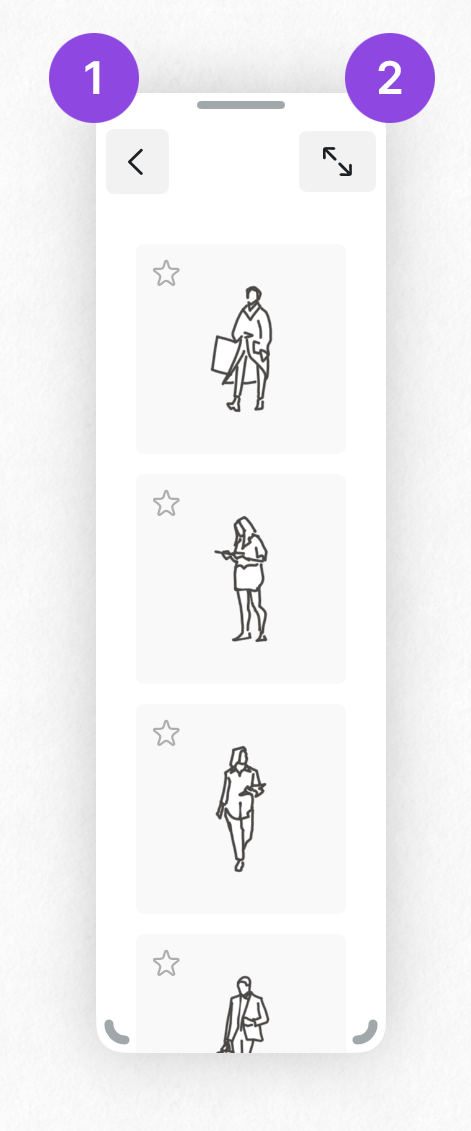
If you want maximal canvas real estate and keep your Objects at hand, you can use the compact view. You can change the position and size of the Compact Object Pack panel at any time.
- Back to Packs. This will take you back to the Library.
- Compact View Toggle. Tap to change the Object Pack view into full size.
Search


You can search Objects in either the Library view or the Pack view. If you have enabled Pexels, you will also see matching stock images when searching.
Searching in Library View
- Searching for Objects in the Library view displays all Objects in every pack that match your search.
- You can scroll through the search results as you would with the Library.
- Tapping the pack name or description will move you to the pack view.
- You can add Objects in the search results directly from the library view by tapping or dragging them to the Canvas.
Searching in Pack View
- Searching for Objects within the pack only displays relevant results in the current pack.
- All relevant results will be shown in the Pack view.
- You can add Objects as you normally would by tapping or dragging them onto the Canvas.
Favoriting Objects

You can mark your favorite Object packs and Objects by tapping the star icon on the pack. Favoriting a pack will add it to a Favorites section in the Library menu. Favoriting an individual Object moves it to the top of the pack's list.
Favoriting Packs
- Tap the star icon in the Library view to mark it as a favourite.
- Favorited packs will be added to the Favorites section at the top of the Library view. You can remove a pack from the favorites by tapping the star again.
Favoriting Individual Objects
- To add an individual Object to your favorites, tap the star icon next to the Object within the pack view.
- Individual Objects that have been favorited will show at the top of the pack view under Favorites.
Object Market

From the Object Market, you will find pre-made Objects available for purchase. You can buy the Object packs individually, or get everything by subscribing in the Pro Store.
- With the free plan, you can use five Objects for free per month.
- You can purchase each Object pack individually or get everything with a subscription in the Pro Store.
Make Your Own Objects (MYOO)
You can create your own Object packs with anything you draw. Make Your Own Objects is a paid feature, available as part of the monthly or yearly Everything subscription.
Creating an Object Pack

- To create a new Object Pack, tap the + button at the My Packs section in the Library.

- You will be prompted to Name Your Pack.
- Once you've chosen a fitting name, tap OK.

- You will be taken to the Pack view of your newly created Object pack.
- To create an Object, select the strokes you want, then drag & drop them anywhere into the Object pack view. Once created, your Object will automatically group your strokes, so you can move and edit it more easily.
- You can also tap the + in the Object pack view when you have an active selection to add strokes as an Object.

- Once you have added the items you want to your Object Pack, tap the Back to Library button.

- Your Object pack will appear in the My Object Packs section of the Library. You can edit and add Objects to your Object pack whenever you want. You can favorite your self-created Objects just as you would with other packs.
Editing Object Pack Settings
You can edit your Object pack's name, add a description or change the brush property settings at any time.

- To start editing your Object pack's settings, tap the ... icon next to your Object pack in the Library.
- Tap View Pack to open the Pack View and use your objects.
- Tap Edit Pack to access Object pack settings.
- Tap Live Sharing to share a pack with other users. Read more about Object Sharing.
- You can also delete your Object pack. Please note that this cannot be undone.

- You can also access the Object pack settings by tapping the ... icon in your Object pack's pack view.

- In the Object pack Settings, you will see all the options you can apply to your pack. You can get back to the Library / Object pack view by tapping the < button.
- From here you can change the Object pack name you set when creating the Object pack.
- Here you can add a description for your Object pack. When using the search function in the Library, the search will also look for words in the pack description.
- In the Default Pack Properties, you can choose which tool properties from the Tool Wheel affect the Objects you add to your Canvas. By default, your Objects will appear as you created them when added again on Canvas. By toggling the different options, you can decide whether the Object uses one or more properties from your currently active tool in the Tool Wheel. Do note that toggling the options will only affect new Objects in the pack, unless you tap the Apply Properties button.
- Toggling Brush Type on will use the active tool in the Tool Wheel when adding an Object to the Canvas.
- Toggling Size on will use the active tool's size in the Tool Wheel when adding an Object to the Canvas.
- Toggling Color on will use the active tool's color in the Tool Wheel when adding an Object to the Canvas.
- Tapping the Apply Properties button will apply the chosen Brush, Size and Color property settings on all the existing Objects in the pack.
- With the Live Sharing, you can share the Object Pack with other users. Read more about Sharing Objects Packs here.
- You can also Delete Pack to permanently delete your Object Pack. Please note that this cannot be undone.
Editing Object Settings
As with the Object Pack Settings, you can also edit your individual Object's settings. You can edit the Object name, change the brush property settings and add search tags for your Object.

- To start editing your Object's settings, go to the Pack View of your Object Pack, and Tap+Hold on the Object you want to edit.

- To edit the Object, tap the Edit Object option in the pop-up menu.
- If you have an active Selection, you can also replace the current Object with the currently active Selection, by tapping the Replace With Selection option. Please note that this cannot be undone.
- If you want to delete the Object, press the Delete Object option in the pop-up menu. Please note that this cannot be undone.

- In the Object Settings, you will see all the options you can apply to your Object. You can get back to the Object Pack View by tapping the < button.
- You can move back and forth between the Objects in your current pack with the < and > buttons.
- Here you can name your Object.
- You can add tags to your Object. This will affect how the Object will appear when using the search function in the Library.
- In the Individual Object Properties, you can choose which tool properties from the Tool Wheel affect the object when you add it to your Canvas. By default, your Object will appear as you created it when added again to the Canvas. By toggling the different options, you can decide whether the Object uses one or more properties from your currently active tool in the Tool Wheel. Do note that toggling the options for an Object will only affect this particular Object in the pack.
- Toggling Brush Type on will use the active tool in the Tool Wheel when adding the Object to the Canvas.
- Toggling Size on will use the active tool's size in the Tool Wheel when adding the Object to the Canvas.
- Toggling Color on will use the active tool's color in the Tool Wheel when adding the Object to the Canvas.
- You can also Delete Object to permanently delete the Object. Please note that this cannot be undone.
Sharing Object Packs

If you have a Subscription and a Concepts Account, you can also share and receive self-made Object packs. Sharing works also across different platforms.
Sharing an Object Pack
To share an Object pack, open the Library menu and scroll down in the My Object Packs section to the Object Pack you’d like to share.

- Tap the three dots ... to show the options for your Object Pack.
- Tap Live Sharing. You can also find the Live Sharing option in the pack settings.

- Tap to return Back to Library.
- Make sure you read the important information before sharing your pack:
- Anyone with the link to your pack can access the pack.
- Only you can make changes to the pack you share. Changes will update automatically to anyone subscribed to your pack.
- Removing or unsharing the pack will remove it anyone who has subscribed to your pack.
- Tap Enable Sharing to generate a shareable link to your object pack.

- Tap to return Back to Library.
- Tap the Share icon to share the link to anyone through the method you prefer.
- Tap Disable Sharing if you ever want to remove the pack from its shared status. Please note that disabling the sharing will remove it from any possible subscribers to your pack.
Receiving an Object Pack
To use an Object Pack shared with you, you'll need to accept the link you've received from the pack creator. Please note that using shared Object Packs require a subscription and a Concepts Account.

Open the Object Pack share link you receive in browser.
- Tap Open in Concepts to continue to accept the pack.
- If the content you receive is offensive, you can report it to our team and we will take a look. We want to keep Concepts a safe environment to create and learn for everyone.

In Concepts you'll see a prompt to add the shared pack to your library.
- When you accept an Object Pack, it's important to acknowledge that received packs have some limitations as compared to self created packs:
- Any changes made by the owner will be automatically updated to your received pack.
- Only the owner can edit the pack. Your version of the pack is read-only.
- If the owner decides to unshare or delete the pack, you will lose access as well.
- Tap Add to Library to add the shared pack to your Library.
- Tap Cancel if you don't want to add the pack to your Library.

- Tap < to return to your Library.
- Tap ... to see the settings for your received pack.

The settings for a received pack differ a bit from those for a self-created pack.
- If the content of the pack is offensive, you can report it to our team and we will take a look. We want to keep Concepts a safe environment to create and learn for everyone.
- Tap Remove from Library if you don't want to use the pack anymore. Note that you can always reaccept the pack as long as you have the link.

- When you return to Library, you'll find the accepted pack under Shared with Me.
Pexels
Pexels provides free, high-resolution stock images for use in your drawings. Read and accept Pexels' Terms of Service to search from thousands of reference images.

- To start using Pexels, scroll to the bottom of the Library or tap the Pexels tag at the top of the Library window.
- Ensure you understand the terms of service before enabling Pexels.
- Accept Pexels' terms and conditions by toggling the switch.
- Once you have accepted Pexel's terms and conditions, you can tap Enable Pexels.

- Once you have enabled Pexels, you will see the featured feed. You can tap the preview to see more featured images.
- To see images from a specific topic, use the Search function at the top of the window.

- Use the search function to narrow the results.
- To search only for Pexels images, tap the Pexels filter at the top of the Library panel.
- Tap or drag the image you want to use to add it on the Canvas.
- To see more results, tap the Show More text at the bottom of the Pexels section.

- Once you've tapped Show More, you will see the full list of search results. Concepts loads only a portion of the images, but you can scroll down to load more.