

Getting Started with Concepts

Concepts is a flexible tool for sketching, note-taking, and design. Imagine traditional paper upgraded to an infinite canvas where every stroke is adjustable. This allows you to fully explore, communicate, and develop your ideas. Concepts is optimized for touch and stylus devices and is available on iOS, Android, Windows, and ChromeOS.
Watch our Start Creating with Concepts in Only Ten Minutes video or read through the Quick Start Guide below.
Quick Start Guide

- When you first open Concepts, you are taken to the Gallery, where you can view, manage and organize your drawings.
- Tap the + button at the bottom of the screen to start a new drawing.

- When you start a new drawing, you're taken to the Infinite Canvas.
- At the top of the screen, you'll find your Status Bar.

- In your Status Bar, you'll find several important options:
- Return to Gallery button
- Drawing name (tap it to rename your drawing)
- Toggle Precision (shows/hides Precision menu)
- Toggle Layers (shows/hides Layers menu)
- Toggle Objects (shows/hides Objects menu)
- Zoom and rotation options
- Pro Store, to get what you need
- Import
- Export
- Settings
- Help
Canvas Gestures

- Concepts is optimized for touch-based devices. To move or pan the Infinite Canvas, place two fingers on the canvas and drag them around.

- To zoom in and out, try pinching and spreading your fingers.

- You can rotate your canvas by placing two fingers on the screen and turning your hand.

- The most important menu on your canvas is the Tool Wheel. You can have up to eight configurable tool slots, along with Undo and Redo buttons, plus property sliders and the color menu.
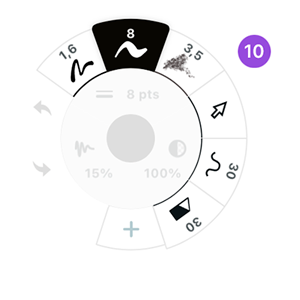
- To select a tool, tap on one of the tools on the outer rim of your Tool Wheel. If you tap a selected tool again, you can access the brush menu, where you can find all the brushes and tool options.
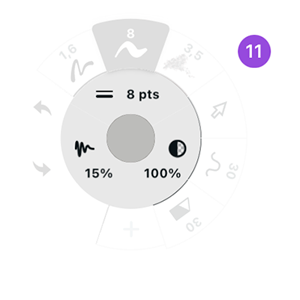
- The middle ring of the Tool Wheel has adjustment sliders for your brush size, opacity and smoothing. You can easily make adjustments to your tool by tapping on one of the symbols, or just by dragging. If you want to draw straight lines, try setting your smoothing to 100%.
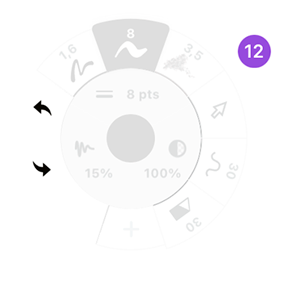
- In the Tool Wheel, there's also buttons for Undo and Redo. You can also use the default gesture of tapping with two fingers to Undo and tapping with three fingers to Redo.

- The center of the Tool Wheel displays your current active color. Tap the center to bring up the Color Wheel. You can choose between COPIC, HSL and RGB color wheels. You can also select colors from anywhere on the canvas, such as an image, by using the Color Picker. Tap on the picker icon or use the Tap+Hold gesture on canvas.
You can toggle several canvas items on or off depending on your needs.

- Tap the Precision Icon in the status bar to bring up the Precision Menu. In the Precision Menu, you have controls for Grid, Snap, Measurement and Shape Guides. Toggle the box to turn the feature on or off. Tap the opposite side to bring up configuration options for each.

- Tap the Layers Icon to bring up the Layers Menu. You might be familiar with Manual Layering already, but one place where Concepts stands apart is an Automatic layering mode that sorts your strokes by tool type while you draw. You can toggle between the two modes by tapping the sorting button. Manually adjusting or selecting a different layer will automatically switch you from Automatic sorting into Manual mode.
In Manual mode, tap any layer to activate it, or tap again to bring up options like select, delete, merge and opacity.

- Tap the Objects Icon to bring up the Objects Library. Objects are pre-made assets that can significantly speed up your design work. You can find a library full of royalty-free Objects in the Object Market. You can also Make Your Own Objects. Choose a pack and drag the Objects directly to canvas.

- The Tool Wheel, Precision Menu, Layers Menu and Objects Library are moveable canvas elements. You can customize the canvas to make it more suitable to your workflow. You can relocate the canvas elements by long-pressing, dragging, and dropping them on the canvas.
In the Status Bar you will find some more useful features to try out.

- To add images to your canvas, tap the Import Icon in the Status Bar to open the Import menu.

- When you are ready to share your drawing with your teammates or clients, tap the Export Icon in the Status Bar. You can export in various formats, sizes and resolutions to your photo library, the Files app, various cloud drives, messaging apps, and more.

- You can find your Workspace and Interactions Settings by tapping the Settings icon in the Status Bar.

- In the Workspace tab, you can make adjustments to your canvas by changing the background, grid type, artboard size and measurement settings.

- The Interactions tab allows you to configure options specific to your input preferences. Concepts is optimized to be used with a stylus. If you don't have one, we highly recommend it for its natural feel and shortcut options. You can set your stylus to draw and your finger to pan. Other gesture options are available for things like the two-finger tap to Undo or three-finger tap to Redo.
One of the most useful gestures in Concepts is the Tap+Hold. You can use this on canvas as a color picker, or by default as a selection tool. As Concepts is based on a vector drawing engine, every single stroke can be picked up and moved around, duplicated and adjusted.

- If you ever get stuck, tap the question mark to access the Help menu. In the help menu, you'll find our latest news at the top, this manual, which you can open in the app and follow along with. You can also find links to our social media and Ask Us Anything, which you can tap to chat with our team.
You should now know enough about the Concepts interface to start exploring the Infinite Canvas and your ideas. If you're new to sketching, be sure to check out our free Learn to Draw Series on YouTube to get better at drawing and visualizing your ideas.
To learn more about Concepts, please choose a category from the sidebar or dropdown menu. Each section starts with a short summary to help you get started quickly. You can also read the full manual as a PDF.
Concepts is always evolving. We update frequently, adding new features and improvements based largely on your feedback. If you have suggestions, let us know.
Sign up for the free trial to get the most out of Concepts!
Stay Connected & Get Support
Stay Up-to-Date
Sign up for our newsletter to receive the latest news and feature releases.
Get Help
Check out our Help page in-app for how-tos and expert interviews.
Explore our video tutorials and workflow videos on YouTube.
Join our Discord Community to connect with other creators, chat with the Concepts team, find inspiration and stay up to date on all things Concepts.
For direct assistance, email us at support@concepts.app or tap Help > Ask Us Anything in the app to chat with our team.
Want to Use Concepts with Your Team?
If you're looking for more information about using Concepts with your team, navigate to our dedicated Concepts for Business page here.