

The Infinite Canvas


Concepts is equipped with an infinite canvas, providing endless room for your ideas as you sketch and iterate. You will never run out of space to explore your creativity.
Navigating the Canvas
Work on the bigger picture or zoom in to focus on the details without boundaries.

Pan

Pan around using two fingers and drag, or use the Pan tool. (You can also enable one-finger pan, which is a great option to get around quickly.) If you are using a stylus, you can set your Finger Action to pan, which makes navigating while drawing more convenient. For keyboard users, press the Space key to enter pan mode, and press it again to exit. You can also hold down Space to temporarily pan and release it to return to drawing mode.
Zoom

To zoom in and out, use a two-finger pinch or spread gesture. You can also use the Zoom tool. You'll notice the zoom snaps at common increments, which help you find commonly used zoom levels easily. You can also turn the zoom snapping off in the Settings (not available on iOS).
For precise zoom levels, tap the zoom value in the Status Bar to open an editor, or tap+hold to edit it inline.
For keyboard users, you can use the keyboard shortcut S to access zoom mode. Drag with stylus or with mouse to the right to zoom in, and to the left to zoom out. Press S to access zoom mode, press S again to exit zoom mode. You can also keep S held down and return to drawing mode when you release the button.
Rotate

Rotate your canvas using a two-finger twist gesture. You can also use the Rotate tool. You'll notice there are rotation snaps at common increments, which help you find standard angles by feel. You can also turn snapping off in the Settings (not available on iOS).
For precise rotation, tap the angle value in the Status Bar to open an editor, or tap+hold to edit it inline.
For keyboard users, you can use the keyboard shortcut R to access rotation mode. Drag with stylus or with mouse to rotate around the axis. Press R to access rotation mode, press R again to exit rotation mode. You can also keep R held down and return to drawing mode when you release the button.
Getting Lost on the Infinite Canvas
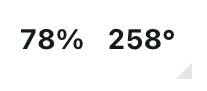
If you get lost on your infinite canvas, you can double-tap the zoom value field in Status Bar to return to the center of your canvas.
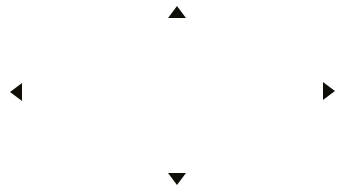
On iOS you will see some pointers appear on the outside edges of the screen; tap one to navigate to the closest off-screen stroke.
Setting an Artboard

You can set a specific size Artboard to help with composition and framing. Go to Settings → Workspace → Artboard. You can use one of the presets or create a custom-sized Artboard. If you have set up an Artboard, you can use it when exporting your drawing.

- Tap on the size to enter values for a custom-sized Artboard.
- Tap one of the presets under the Artboard size.
- Tap the three dots to see more presets.
Moving the artboard
Tap+hold a corner of the artboard to move it. This is helpful for framing parts of your drawings and getting a reference of what size your drawing is based on real-world scale. When you Export, you can choose to capture the image according to the Artboard's sizing.
If you don't want your Artboard to be movable, go to Interactions → Stylus → Enable artboard drag and toggle the option off (Windows & Android only).
To learn helpful techniques on applying Artboards, importing and exporting work and getting the most out of your Infinite Canvas, enjoy our tutorial Working with Your Infinite Canvas.
Using a Stylus

Concepts is at its best with a stylus and optimized for working with pressure and tilt-sensitive styli such as the Apple Pencil, Microsoft Surface Pen, Samsung S Pen, and many others. Concepts supports Palm Rejection, writing angle adjustments, and pressure curve trimming.
If you're using Concepts on Windows, please make sure you have Windows Ink activated.
If you are using a supported stylus, you can adjust and enable the pressure response and enable the tilt. The settings might differ depending on your platform.
- Pressure Response. Use the Pressure Response sliders to restrict the pressure response, tailoring it to your drawing style.
- Pressure. Enable or disable pressure sensitivity when using a stylus.
- Tilt. Enable or disable tilt recognition for brushes that support it.
- Tap & Hold. Enable or disable the tap+hold feature when using a stylus.
- Enable Artboard Drag. Enable or disable the ability to drag the Artboard with a stylus (Windows and Android only).
- Barrel Roll (Apple Pencil Pro). Enable or disable stamp rotation (iOS only).
- Hover Brush Previews (M2+). Enable or disable showing brush stamp previews (iOS only).
Shortcut Buttons
The shortcut buttons on some styli can be configured once the pen has been connected. Buttons can be configured to: No Action, Undo, Redo, Select Last Item, Show Layers, Show Color Wheel, Tool Setup, and Show Objects.
Eraser
If you use a stylus with a dedicated eraser, you can set the eraser action. The chosen settings will also be applied for the keyboard shortcut E.
Palm Rejection on iOS
Make sure you turn off Multitouch Gestures in your device's Settings app (under General). Disabling this prevents conflicts and ensures smooth canvas navigation.